


Animation Creator: Flipbook 2D
3.2743.00 Reviews
App Specs
- Version
- 1.3.5
- Updated On
- License
- Free
- Downloads
- 1,000,000+
- Developer
- CEM SOFTWARE LTD
- Categories
- Art & Design
- Platform
- Android, iOS
Screenshots
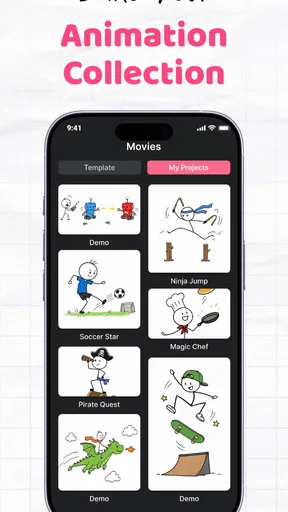
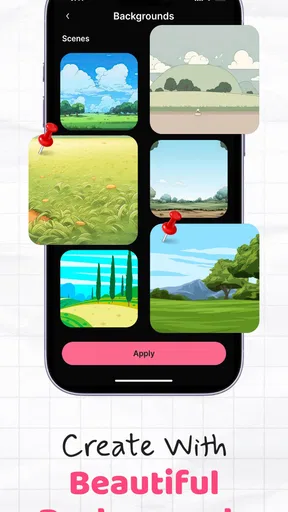
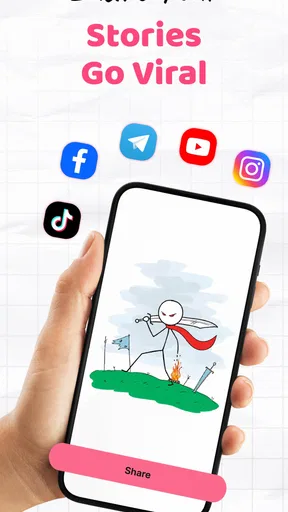
 Analysis by AppCompare
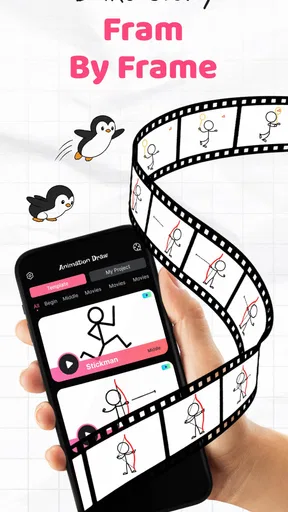
I like the idea behind Animation Creator: Flipbook 2D: take a drawing that would otherwise stay still and build movement by changing it frame by frame. That simple approach is the app’s real appeal. It gives beginners a direct way to understand how animation is made, while giving casual artists a reason to look at their sketches differently. I’d think of it as a pocket workspace for small 2D experiments, not as a replacement for a full desktop animation studio.
Turning a drawing into a sequence
The central capability is frame-by-frame animation. Instead of asking a tool to move an image automatically, you draw a pose, make another frame with a small change, and let the sequence create the impression of motion. That distinction matters: the app makes the process approachable, but the animation still comes from your choices and the care you put into each drawing.
In practice, I’d start with a very small action: a ball bouncing, a flower opening, or a character blinking. A short sequence lets you learn how the frames relate without getting buried in details. The app’s ability to add, duplicate, and remove frames supports that kind of trial and error. Duplicating a frame can preserve a pose while you adjust one part; removing a frame is useful when a movement feels sluggish or a drawing no longer belongs.
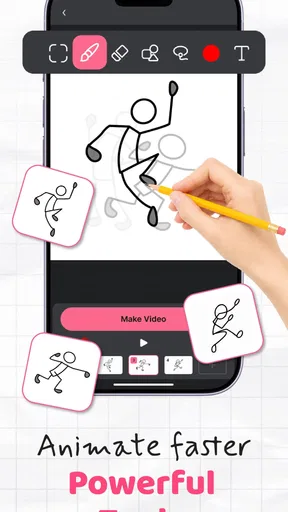
The onion-skin view is especially useful once the subject starts moving. Seeing a previous drawing while working on the current one gives you a reference for placement and shape, which helps avoid accidental jumps. I’d use it lightly: a strong ghost image can make it harder to judge the current frame, while reducing its opacity can keep the guide visible without overwhelming the new drawing. For a bouncing object, for instance, that faint reference helps show whether the next position is a natural step or a sudden leap.
A practical workflow for a first flipbook
I’d plan the motion before worrying about polish. Draw a clear starting pose, decide where the subject should end up, and then create the in-between positions. The most useful beginner habit is to change only what needs to change between neighboring frames. If the background and the character’s body shift unnecessarily, the whole image can seem to wobble; keeping stable parts consistent makes the movement easier to read.
For a tiny everyday project, imagine drawing a cup on a desk and animating steam rising from it. The cup can stay nearly identical while the steam changes shape and position from frame to frame. That keeps the workload manageable and teaches an important animation principle: movement does not require redrawing every element in a scene. A simple subject also makes it easier to spot timing problems before adding color or extra decoration.
Once the motion reads clearly, color and brush choices can give it personality. The drawing tools invite experimentation, but I would settle on a small palette early rather than changing colors in every frame. A consistent look makes a short animation feel intentional, and it saves you from having to correct small mismatches later. If a test starts to feel messy, returning to a few clear shapes is often more effective than adding detail.
Worth Reading Before You Choose

EA SPORTS FC Mobile 26 Is a Bigger Football Game, but It Takes Time

Flipboard Shows What News Apps Must Do Beyond the Feed

Switching to Android Auto Means Rethinking Your Driving Routine

Google Calendar Makes a Crowded Week Easier to Manage

Ludo King Makes the Most of the Minutes Between Plans

Baby Panda World Brings Quick Play to Modern Phones, but Its Game Library Feels Busy
Where the app fits among animation tools
Compared with drawing a sequence on paper, a digital flipbook is easier to revise: frames can be copied or removed instead of redrawn from scratch. Compared with a general-purpose drawing app, the frame-based approach keeps motion at the center rather than treating each image as a separate finished illustration. That focus is a good fit when you want to learn how a movement develops over time.
It is not automatically the best choice for every project. Someone who needs a complex production pipeline, extensive control over a long film, or a highly organized workspace may be more comfortable with a dedicated desktop animation program. On a phone or tablet, the advantage is convenience and immediacy; the trade-off is that a crowded project can be harder to manage and draw precisely. I’d keep this app for short ideas, practice, and playful clips, then move to a larger tool if the work grows beyond that scope.
Sound can be part of the process too. Adding audio may help a short scene feel more complete, but I’d treat it as a finishing step rather than a substitute for readable movement. First make sure the action makes sense without sound; then use a simple effect or musical cue to support the moment. This order also makes it easier to tell whether the animation itself is working.
A realistic use, from spare moment to shareable clip
Picture a student waiting for a friend and sketching a tiny character waving. They can block out the gesture in a few frames, duplicate a pose where the hand should pause, and use onion skinning to keep the character from drifting across the canvas. If the first attempt feels too fast, they can adjust the sequence by adding or repeating a pose rather than starting the whole drawing again. That is the kind of low-pressure project where the app’s workflow makes sense: one clear idea, a few deliberate changes, and a result that is fun to send to someone.
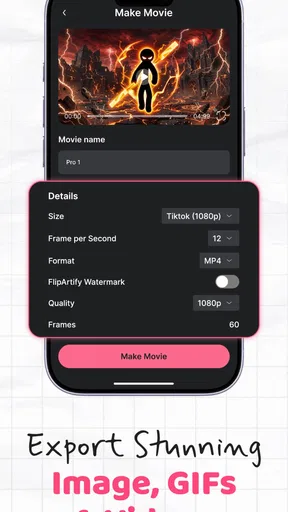
When the sequence feels finished, the app offers ways to export as a GIF or video and to share work. I’d choose the format based on where the clip is going: a looping gesture suits a GIF, while a video may be more convenient for a broader viewing context. Before sharing, watch the result from beginning to end and check that the loop or ending feels deliberate. A final review can catch a frame that flashes too briefly or a transition that looked fine while drawing but feels abrupt in motion.
The app also has a community space for showing work and seeing other creators’ projects. That can be helpful for inspiration, but I’d use it as a source of ideas rather than a measure of whether my own work is good. A beginner can learn a lot by noticing how others simplify shapes or make a small movement readable. It is still worth keeping personal projects small enough to finish, rather than letting comparison turn a quick exercise into an intimidating assignment.
Learning curve, performance, and sensible limits
The basic idea is easy to grasp, but getting comfortable with the drawing tools and frame workflow takes practice. I would not expect the first attempt to look smooth just because the app makes frame controls accessible. Animation depends on spacing and timing, and those are easier to learn through short tests than through a long, ambitious project. A useful exercise is to make the same simple action twice, changing the distance between poses, then compare which version feels more natural.
There can also be friction as a project becomes larger. I noticed lag with bigger projects, so I would avoid treating one file as a place for every experiment. Keeping a scene focused and testing motion before adding lots of frames or detail is a practical way to reduce wasted effort. If the app begins to feel slow, simplifying the drawing or breaking an idea into smaller scenes may be more productive than continuing to add complexity.
Audio and sharing broaden what you can do with a finished clip, but the core value remains the frame sequence. I would not choose it mainly for sound editing, social features, or elaborate production needs. Its strongest use is making a hand-drawn movement understandable and enjoyable. That focus is also why it can be a satisfying first step for someone who has only ever drawn still pictures.
Who will enjoy it most
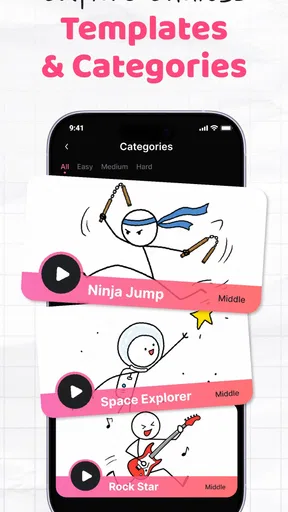
This is a good fit for curious beginners, sketchers who want to try motion, and people who enjoy making short visual jokes or greetings. It can also work for an artist who wants to test a gesture before developing it elsewhere. The age rating is Everyone, and the app is free to install, with in-app purchases priced from $2.99 to $29.99 per item. I’d explore the basic workflow first and decide whether the tools suit my habits before spending anything.
If you mainly want to make polished illustrations, a standard drawing app may be a better match. If you need detailed control over a long animation, you may prefer a more specialized tool. And if you dislike drawing the same subject across multiple frames, this particular approach may feel repetitive; frame-by-frame work rewards patience more than automation does.
There is a modest audience around the app: it has a 3.3 average from around 9,400 ratings, with 714 written reviews, and more than a million installs. CEM SOFTWARE LTD released it on July 26, 2024; version 1.3.4 requires Android 8.0 or later. Those details give a sense of its footprint, but they do not change my practical advice: judge it by whether the frame-by-frame method feels enjoyable on your device.
My take after using the workflow
What I appreciate most is how directly the app connects drawing with movement. The onion-skin guide and simple frame editing make it easier to see what needs to change next, while the export options give a finished experiment somewhere to go. The trade-off is that a larger sequence can become demanding, both for the artist and for the app’s performance, so I would keep expectations and project size realistic.
For me, the best reason to try it is not the promise of making a professional film in a few taps. It is the chance to turn a small sketch into a moving idea and learn, one frame at a time, why timing and consistency matter. If that sounds enjoyable, Animation Creator: Flipbook 2D is worth exploring; if you need a deep production toolkit, I’d choose a more specialized alternative.
Diving into the app is like opening a new sketchbook, but with a digital twist. When I first installed it, the clean and straightforward interface immediately caught my eye. It’s user-friendly, which is perfect whether you’re an experienced artist or just someone who loves to sketch.
Once you open the app, you’re greeted with a blank canvas. It’s your playground, and the possibilities are endless. The app offers a variety of tools, from simple pencil strokes to vibrant colors. I found myself getting lost in experimenting with different brushes and shades, trying to capture the perfect scene.
Features That Stand Out
Let’s talk about the features because this app is packed with them! One of my favorites is the ability to create frame-by-frame animations. It’s like flipping through an old-school flipbook but without the paper cuts. You can easily add, duplicate, or remove frames, making the animation process smooth and intuitive.
Another cool feature is the onion skinning tool. This allows you to see the previous frame while working on the current one. It’s a lifesaver for keeping animations consistent and fluid. Plus, you can adjust the opacity, which gives you more control over your drawings.
The app also lets you add audio to your animations. I had a blast syncing sound effects and music to my mini-movies. It adds an extra layer of creativity and makes your animations more engaging.
Sharing Your Masterpieces
What’s the point of creating something amazing if you can’t share it, right? It makes sharing super easy. Once you’re happy with your creation, exporting it to various formats like GIFs, videos, or directly sharing it on social media is just a tap away. I shared a few of my animations with friends, and their reactions were priceless.
There’s also a community within the app where you can showcase your work and get inspired by others. It’s a great way to connect with fellow animators and exchange tips and ideas.
Things to Keep in Mind
While the app is fantastic, it’s worth noting that it might take some time to get used to all the tools if you’re a beginner. But hey, that’s part of the fun! With a bit of practice, you’ll be creating pro-level animations in no time.
I did encounter a few instances where the app lagged, especially with larger projects. It wasn’t a deal-breaker for me, but something to be aware of if you plan on creating lengthy animations.
Final Thoughts
Overall, this app is a gem for anyone passionate about animation. Whether you’re looking to create short clips or just doodle for fun, this app offers a platform that’s both powerful and easy to use.
So, if you’re ready to unleash your creativity and watch your drawings come to life, give this app a try. Who knows, you might just create the next viral animation!
Pros
- Intuitive drawing interface for beginners.
- Wide range of brushes and colors.
- Supports onion skinning for smooth animation.
- Easy export options to GIF and MP4.
- No ads in the premium version.
Cons
- Limited features in the free version.
- Occasional lag on older devices.
- No collaboration tools available.
- In-app purchases can be costly.
- Requires a learning curve for novices.
FAQs for Animation Creator: Flipbook 2D
What is Animation Creator: Flipbook 2D and who is it for?
Animation Creator: Flipbook 2D is an intuitive app designed for both beginners and professionals looking to create dynamic 2D animations. It features a user-friendly interface that allows users to draw frame-by-frame animations, making it perfect for aspiring animators, artists, and hobbyists who want to bring their creations to life.
What are the key features of Animation Creator: Flipbook 2D?
Animation Creator: Flipbook 2D offers a variety of features including onion skinning, a wide array of drawing tools, layer support, and adjustable frame rates. It also provides export options to share your animations in different formats. These features make it versatile for detailed projects or quick sketches.
Is Animation Creator: Flipbook 2D compatible with both Android and iOS devices?
Yes, Animation Creator: Flipbook 2D is available for download on both Android and iOS platforms. It is optimized to run smoothly on most devices, ensuring users have a seamless experience whether they are using a smartphone or a tablet.
Does Animation Creator: Flipbook 2D require an internet connection to use?
Animation Creator: Flipbook 2D does not require an internet connection for most of its features. You can work offline on your projects anywhere and anytime. However, an internet connection is needed if you wish to download updates or share your animations directly from the app.
Are there in-app purchases or subscriptions for Animation Creator: Flipbook 2D?
While Animation Creator: Flipbook 2D offers a free version with basic features, there are optional in-app purchases available. These may include advanced tools, additional templates, or a subscription model to unlock premium content and remove ads, enhancing the overall animation experience.


